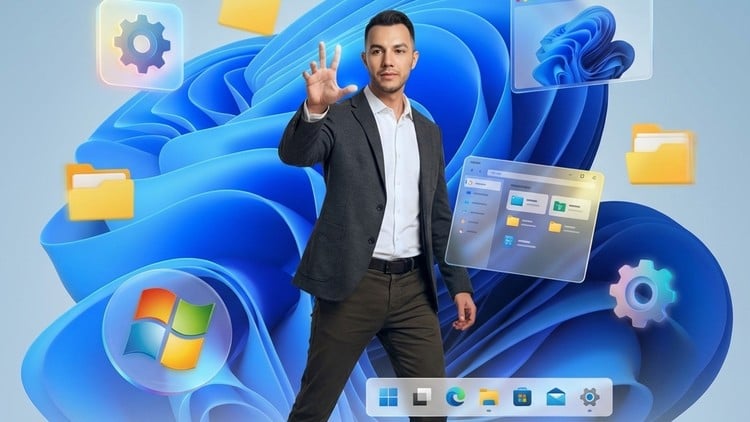
Overview
Navigate the Windows 11 interface including the new Start Menu, taskbar, and notification center, Understand and configure Microsoft accounts, sign-in options, and security settings, Personalize Windows 11 with themes, backgrounds, colors, and layout preferences, Master the Microsoft Store for discovering, purchasing, and installing applications, Use File Explorer efficiently to manage files, folders, and storage, Configure comprehensive accessibility features for vision, hearing, and mobility needs, Apply accessibility tools in Microsoft 365 apps including Word, PowerPoint, and Teams, Customize and optimize Microsoft Edge browser for productivity and privacy, Manage Edge profiles, passwords, bookmarks, extensions, and browsing history, Implement tracking prevention, InPrivate browsing, and security best practices, Use Edge productivity features like Collections, Web Capture, and Immersive Reader, Install and configure Windows 11 with proper system requirements, Master Snap Layouts, Snap Groups, and virtual desktops for multitasking, Configure and use Windows widgets, search, and default apps, Manage date, time, region, language, and storage settings, Create and manage user accounts with appropriate permissions, Configure Windows Security including Defender, Firewall, and BitLocker, Use administrative tools like Task Manager, Event Viewer, and Device Manager, Perform disk management, backups, and system recovery operations, Set up and manage Hyper-V virtual machines, Connect and manage Android phones using Phone Link
Beginners who are new to Windows 11 or upgrading from Windows 10 or earlier versions, IT professionals looking to master Windows 11 features and administration, Business users who want to increase productivity and efficiency, Students and educators preparing for a Windows 11 environment, Accessibility advocates and users who rely on assistive technologies, Power users who want to unlock advanced features and customization options, System administrators responsible for managing Windows 11 deployments, Anyone who uses Windows 11 daily and wants to use it more effectively, Technology enthusiasts eager to explore all Windows 11 capabilities, Remote workers who need to optimize their Windows 11 setup for home office use
A computer running Windows 11 (or ability to install Windows 11 during the course), Basic computer skills such as using a mouse and keyboard, Access to a Microsoft account (free to create), No prior Windows experience required - we start from the basics, For advanced sections: Windows 11 Pro edition recommended (but not required), Eagerness to learn and explore the Windows 11 operating system
AI Disclosure: This course contains the use of artificial intelligence.
Master Windows 11 from the ground up and unlock its full potential
Whether you're new to Windows 11 or upgrading from a previous version, this comprehensive course is designed to take you from a complete beginner to a confident power user. With over 110 hands-on lessons, you'll discover everything from the basics of navigating the interface to advanced professional features that will boost your productivity.
This course is structured into four comprehensive sections:
Section 1: Windows 11 Foundations - Start with the fundamentals! Learn to navigate the new Start Menu, taskbar, and notification center. Understand Microsoft accounts, sign-in options, and personalization features. Master essential apps, the Microsoft Store, File Explorer, and Wi-Fi connectivity. This section ensures you're comfortable with the core Windows 11 experience.
Section 2: Windows 11 Accessibility - Discover how Windows 11 empowers everyone! Explore comprehensive accessibility features including text size adjustments, display settings, narrator, magnifier, color filters, speech recognition, and eye tracking. Learn how Microsoft 365 apps integrate accessibility tools like the Immersive Reader, dictation, and Teams accessibility options. This section demonstrates Microsoft's commitment to inclusive technology.
Section 3: Windows 11 Pro and Power Users - Unlock advanced capabilities! Install and configure Windows 11, manage system requirements, and optimize performance. Learn professional features like Snap Layouts, Snap Groups, multiple desktops, and advanced multitasking. Dive deep into system security with Windows Defender, Firewall, BitLocker, and device security. Master administrative tools including Task Manager, Event Viewer, Device Manager, and Disk Management. Set up Hyper-V virtual machines, configure backups and recovery, and even connect your Android phone with Phone Link.
What makes this course special?
- Step-by-step video tutorials that are easy to follow
- Real-world examples and practical demonstrations
- Coverage of both basic and advanced features
- Accessibility-focused content for inclusive learning
- Professional power user techniques
Who should take this course?
This course is perfect for anyone who wants to master Windows 11, whether you're a complete beginner, IT professional, business user, accessibility advocate, or power user looking to maximize productivity.
By the end of this course, you'll be able to navigate Windows 11 with confidence, customize it to your needs, use advanced features like a pro, and troubleshoot common issues independently.
Enroll today and transform the way you work with Windows 11
Omar Koryakin
Hi, I'm Omar a data science and metrology engineer with over a decade of real-world experience working across industries like medical devices, manufacturing, and tech.
I started my career in engineering, but my passion for solving problems with data led me deep into the world of Python, machine learning, and analytics. Since then, I've helped teams automate processes, build predictive models, and make smarter, data-driven decisions all without overcomplicating things.
My teaching style is simple, practical, and beginner-friendly. I focus on what actually works in the real world, not just theory. Whether you're completely new or switching careers, my courses are designed to help you learn fast, build real skills, and feel confident applying them.
When I’m not working with data or building training programs, I’m probably hiking, playing piano, or working on my next course to make data science more accessible to everyone.
Let’s learn something great together.